
Most PixiJS sprite sheet examples come down to one line: new AnimatedSprite(sheet.animations["walk"]). The official API docs show it, and so does the TexturePacker tutorial. It works because the JSON they load was written by a packer that adds an animations block. Load a sheet whose JSON doesn't have that block, and sheet.animations is an empty object. You get no error, just nothing on screen.
This guide covers both halves of the job. First you make a four-frame walk cycle in a browser tab with Tsubu and export it as a packed PNG plus a JSON atlas. Then you load that exact file in PixiJS v8 and look at what Pixi really builds from it, which is where the usual one-liner stops matching. Every Pixi call below was checked against the pixi.js 8.21.0 source and its bundled API docs on 2026-09-23.
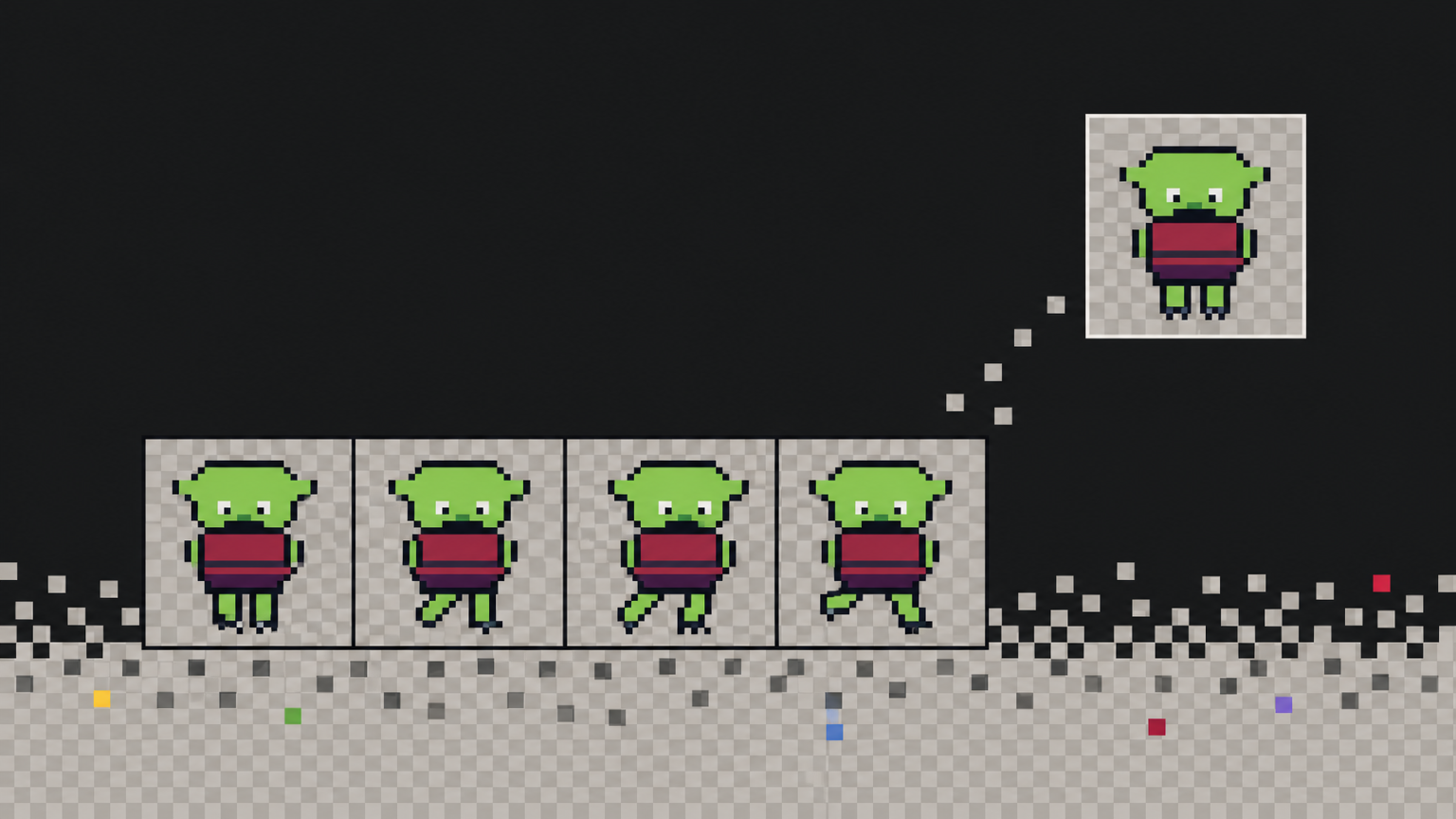
What Pixi reads from a sheet
Pixi doesn't slice images into grids. Its spritesheet loader reads a JSON file and takes three things from it:
frames: the rectangle of every frame in the image. Pixi's docs show it as an object keyed by frame name (the "hash" format). An array (the "array" format) also loads, but it changes how you look frames up later.meta.image: the PNG's filename. Pixi loads it from the same folder as the JSON, so you only ever point the loader at the.json.meta.scale: the export scale. In v8 this sets the texture's resolution, so a sheet exported at 4× with"scale": "4"still draws at its original size.
An animations object is optional. When it's there, Pixi turns each list of frame names into a ready array of textures. When it isn't, you build that array yourself. It's three lines, shown below.
Make the frames
This part is short, because other posts cover it properly.
Sign in with Google. Tsubu runs in the browser, so there's nothing to install. During early access the studio is free for early adopters, and AI usage is sponsored by the platform with no credit cap. In the library, create a project, click New asset, set the type to Animation, name it (this example is Goblin Walk), pick a 32 × 32 grid and start with a couple of frames. Draw the first contact pose, then duplicate and adjust until you have four. Press play and move the Speed slider until the walk looks right. 12 fps is the default and a good place to stop.
For the longer version, how to animate pixel art builds a four-frame walk cycle pose by pose. If you'd rather not draw the first pose, the AI pixel art generator can draft one on a real grid. Treat it as a first pass you edit, not a finished sprite. One honest note: what these models were trained on is still an open question on our side, so treat AI-drafted frames as a draft you own, and disclose them if you ship them.
Export the sheet and its JSON
You don't export from inside the editor. Go back to the library, find the asset's card and open its actions menu (the kebab in the card's top-right corner, or right-click the card). Choose Export.
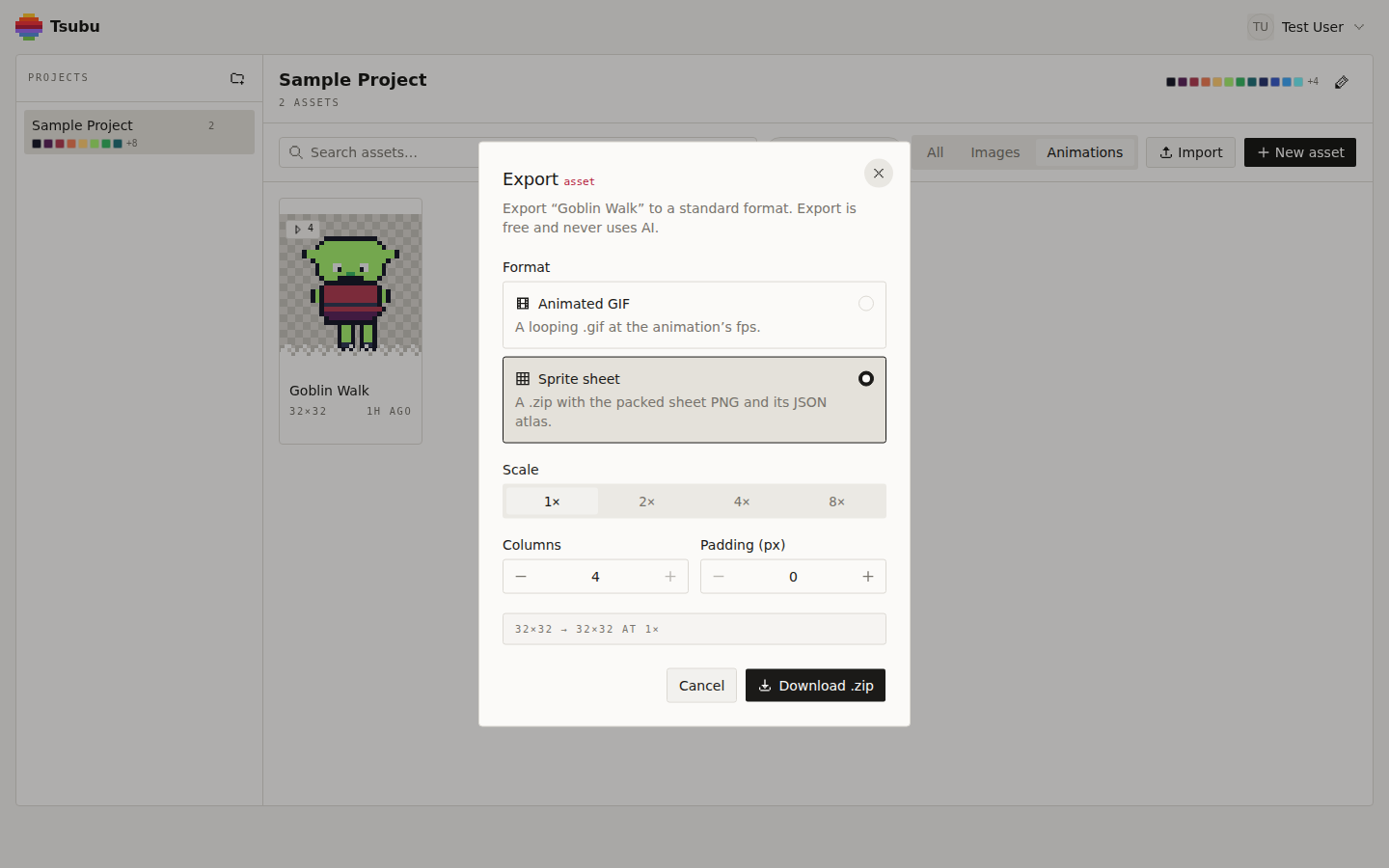
That's the real dialog on the four-frame Goblin Walk. Choose Sprite sheet ("a .zip with the packed sheet PNG and its JSON atlas"), not Animated GIF. Then set three controls:
- Scale: 1×. Pixi can draw a 32 px frame at any size on screen, so there's no need to bake the zoom into the file. Higher scales work too, because Pixi reads
meta.scale, but 1× keeps the numbers in the JSON equal to the sprite you drew. - Columns: 4. This defaults to the frame count, so the frames pack into one row. Pixi doesn't care about the layout, since it reads each rectangle from the JSON. A single row is just easier to check by eye.
- Padding (px): 0. Padding adds gaps between cells. The JSON records the real positions either way, so Pixi handles both. With nearest-neighbour filtering (see below) there's nothing to bleed, so 0 is fine.
The line at the bottom shows the frame size: 32×32 → 32×32 AT 1×. As the dialog says, export is free and never uses AI. Click Download .zip.
What's in the zip
Two files: goblin-walk.png and goblin-walk.json. The PNG is 128 × 32, four 32 × 32 frames in one row at x = 0, 32, 64 and 96, with transparency intact. The JSON is the TexturePacker / Aseprite array format. Here it is with only the first frame shown:
{
  "frames": [
    {
      "filename": "goblin-walk 0",
      "frame": { "x": 0, "y": 0, "w": 32, "h": 32 },
      "rotated": false,
      "trimmed": false,
      "spriteSourceSize": { "x": 0, "y": 0, "w": 32, "h": 32 },
      "sourceSize": { "w": 32, "h": 32 },
      "duration": 83
    }
  ],
  "meta": {
    "app": "https://tsubu.art",
    "version": "1.0",
    "image": "goblin-walk.png",
    "format": "RGBA8888",
    "size": { "w": 128, "h": 32 },
    "scale": "1",
    "frameTags": [
      { "name": "goblin-walk", "from": 0, "to": 3, "direction": "forward" }
    ]
  }
}
Frames 1 to 3 have the same shape, with x at 32, 64 and 96. Note three things before you write any Pixi code:
framesis an array. Each entry carries afilenamesuch asgoblin-walk 0, but as the next section shows, Pixi doesn't use it as the key.- There's no
animationskey. The animation is described inmeta.frameTags, which is Aseprite's convention. Pixi's loader doesn't read frame tags. durationis 83 ms per frame. That's 1000 ÷ 83 ≈ 12 fps, the speed you set in the editor.
Put both files in the same folder in your project, for example public/assets/, and keep their names as they are. The JSON refers to the PNG by name.
How Pixi v8 reads this file
Here's what Assets.load gives you for this JSON. We ran the export through pixi.js 8.21.0 to confirm it:
sheet.textureshas the keys"0","1","2"and"3". Pixi names each texture by its key inframes. For an array, those keys are the array indices. Thefilenamevalues are ignored, sosheet.textures["goblin-walk 0"]isundefined, andsheet.textures["0"]is your first frame.sheet.animationsis{}. Pixi builds it only from a top-levelanimationsobject, which this file doesn't have.
Neither is a bug. Pixi's own doc example uses the hash format with an animations block, and TexturePacker's PixiJS exporter writes one because it "detects animations in your sprites and creates lists of all frames" (TexturePacker PixiJS tutorial). Code copied from those examples expects keys this file doesn't have. With an array file, you look frames up by index and build the animation list yourself.
Load and animate it
Here's a complete v8 example, written as an ES module (top-level await works in Vite and any modern bundler):
import { AnimatedSprite, Application, Assets, Sprite } from "pixi.js";

const app = new Application();
await app.init({
  width: 320,
  height: 180,
  background: "#1a1c2c",
  roundPixels: true,
});
document.body.appendChild(app.canvas);

const sheet = await Assets.load({
  alias: "goblin",
  src: "assets/goblin-walk.json",
  data: { textureOptions: { scaleMode: "nearest" } },
});

// A single frame: array-format keys are the indices, as strings.
const still = new Sprite(sheet.textures["0"]);
still.position.set(40, 60);
still.scale.set(2);

// The animation: all four frames, in order.
const walk = new AnimatedSprite(Object.values(sheet.textures));
walk.animationSpeed = 0.2; // 12 fps
walk.anchor.set(0.5);
walk.position.set(200, 90);
walk.scale.set(3);
walk.play();

app.stage.addChild(still, walk);
What each part does:
Assets.load gets the JSON, not the PNG. The spritesheet loader checks that the file ends in .json and has frames, then loads the image named in meta.image from the same folder. The data.textureOptions object is passed on to that image's texture, and the pixi.js typings use this exact example: textureOptions: { scaleMode: "nearest" }. That's the pixel-art setting (more below).
Object.values(sheet.textures) returns the frames in order. JavaScript orders integer-like keys numerically, so you get frame 0, 1, 2, 3. If you'd rather be explicit, or you only want part of the sheet, list them: ["0", "1", "2", "3"].map((i) => sheet.textures[i]).
animationSpeed is frames per tick, not frames per second. Its default is 1, which means one new frame per tick. Pixi's ticker scales that to 60 ticks per second, so the default plays at 60 fps and your walk is a blur. For 12 fps, divide by 60: 12 ÷ 60 = 0.2. Because the ticker adjusts for the display's real frame rate, 0.2 still gives 12 fps on a 120 Hz screen.
play() is required. An AnimatedSprite starts stopped. Call play(), or pass autoPlay: true if you create it with the options object.
Use the JSON's own timing instead
AnimatedSprite also accepts { texture, time } objects, where time is the frame's duration in milliseconds. That's the same unit as the JSON's duration, so you can use the timing from the editor directly:
const frames = sheet.data.frames.map((f, i) => ({
  texture: sheet.textures[i],
  time: f.duration, // 83 ms each
}));
const walk = new AnimatedSprite(frames); // leave animationSpeed at 1
With per-frame times, an animationSpeed of 1 means real time, and 0.5 means half speed. This is the better choice if you later give frames different lengths, such as a longer contact pose.
Or use the frame tag
meta.frameTags is still in sheet.data, so you can build the animation from it by name. This helps when one sheet holds several animations:
const tag = sheet.data.meta.frameTags.find((t) => t.name === "goblin-walk");
const textures = [];
for (let i = tag.from; i <= tag.to; i++) textures.push(sheet.textures[i]);
const walk = new AnimatedSprite(textures);
Optional: add an animations block yourself
If you want the sheet.animations["goblin-walk"] style from the Pixi docs, you can edit the JSON after export and add a top-level animations object. The frame names are the array indices as strings:
"animations": {
  "goblin-walk": ["0", "1", "2", "3"]
}
With that added, new AnimatedSprite(sheet.animations["goblin-walk"]) works as the docs show. Remember that you made this edit by hand: the next export writes a fresh JSON without it. That's why the code-side versions above are usually easier to maintain.
Keep the pixels crisp
By default Pixi scales textures with "linear" filtering, which blurs pixel art as soon as you scale it up. You have three places to fix it:
- For one sheet:
data: { textureOptions: { scaleMode: "nearest" } }inAssets.load, as in the example above. - For every texture: set
TextureStyle.defaultOptions.scaleMode = "nearest"(importTextureStylefrompixi.js) before you load anything. It only affects textures created after you set it. - On an already-loaded texture:
sheet.textureSource.scaleMode = "nearest".
Two more settings make it look right. roundPixels: true in app.init snaps sprites to whole pixels, so a character moving at fractional speeds doesn't shimmer. And whole-number scales (2, 3, 4) keep every source pixel the same size on screen. If you enlarge the canvas with CSS instead of drawing larger in Pixi, the browser smooths it again, so add image-rendering: pixelated to the canvas.
PixiJS v7 vs v8
Most Pixi sprite sheet tutorials online are older than v8, which is why copied code often breaks. The changes that matter for this page:
- The
Loaderis gone; useAssets. The v7 migration guide replacednew Loader()/loader.add(...)/resources.sheet.spritesheetwithawait Assets.load(...). If a tutorial usesPIXI.Loader.shared, it was written for v6 or earlier. app.init()is async. The v8 migration guide states that "PixiJS will now need to be initialised asynchronously": createnew Application(), thenawait app.init({...}).app.viewis nowapp.canvas.- Scale modes are strings.
SCALE_MODES.NEARESTbecame"nearest". The old constant still works in v8 but logs a deprecation warning. BaseTextureis gone. Its settings (scale mode included) now live on theTextureSource, which is why the per-texture fix above istextureSource.scaleMode.meta.scalesets the resolution in v8. A 2× export whose JSON still says"scale": "1"draws at double size. Tsubu writes the real scale, so this only matters if you edit the file.
The array-index keys and the empty animations described above were checked against v8 (8.21.0). If you're on an older major version, log Object.keys(sheet.textures) once before you rely on specific names.
When it still looks wrong
- Nothing on screen, no error. Most likely you passed
sheet.animations["goblin-walk"](which isundefined) or looked upsheet.textures["goblin-walk 0"]. Use the indices, or add theanimationsblock yourself. - The walk is a blur.
animationSpeedis still 1, which means 60 fps. Use 0.2 for 12 fps, or{ texture, time }frames with speed 1. - Soft, blurry edges. The texture is using linear filtering. Set
scaleMode: "nearest"throughtextureOptionsorTextureStyle.defaultOptionsbefore loading. - A 404 for the PNG. The loader looks for
meta.imagenext to the JSON. Keep the two files in the same folder, and don't rename one without the other. - A console warning like
[Cache] already has key: 0. Two array-format sheets both have frames"0","1"… and Pixi caches textures by those keys. Yoursheet.texturesreferences still work, but global lookups are ambiguous. AddcachePrefix: "goblin-walk "to thedataobject to give each sheet its own names in the cache. - The sprite is double or half size. The PNG and
meta.scaledisagree. Re-export instead of resizing the PNG by hand.
Where this goes next
- Already have frames, just need them packed? The sprite sheet maker does that one job and isn't tied to any engine. Bring in a GIF or an existing sheet (or draw the frames) and download a packed sheet with its JSON. Plenty of tools write Pixi-ready JSON: TexturePacker has a PixiJS exporter, and so does the open-source Free Tex Packer. What's different here is that the frames stay editable in the same tab.
- Making sprites for a whole game, not just this sheet? Pixel art for games covers the full workflow: canvas sizes, grid-true export and import notes for Unity, Godot, Phaser and Pixi.
- Also shipping on Phaser? Sprite sheet in Phaser loads the same Goblin Walk export there, where frame names like
goblin-walk 0do become the keys.
Make the sheet you're missing
On the Pixi side you now have a short checklist: Assets.load the JSON, look up array frames by index, build the AnimatedSprite from sheet.textures (or the frame tag, or the JSON's durations), set animationSpeed to your fps ÷ 60 and call play(), and use nearest scaling.
That leaves the sprite itself, which no loader can give you.
Open the editor and make your first PixiJS sprite sheet. You sign in with Google, and it's free while we're in early access. New workflow guides are posted to the RSS feed.